

Save it. Schedule it. Work it. Update it.
You do not need to rebuild your sales process around follo. Keep working in the tools you already use and let follo become the small layer that remembers what deserves your attention next.
Capture an important person before you leave the page.
Choose the next action and when the relationship should return.
Open Today’s Focus or start a Focus Sprint instead of scanning every list.
Record what happened, add a quick note, and set the next touch.
Set up follo once.
- Install follo.Add it from the Chrome Web Store.
- Pin the extension.Select Chrome’s puzzle-piece icon, then pin follo so it is always easy to open.
- Open the side panel.Select the follo icon. The panel stays beside the page where you are working.
- Save one real lead.On Gmail, LinkedIn, Salesforce, or HubSpot, select the purple follo orb. If it is not available on the page, use + Lead in the side panel.
Your first goal is not to import every name you know. Save the active relationships that deserve another conversation.
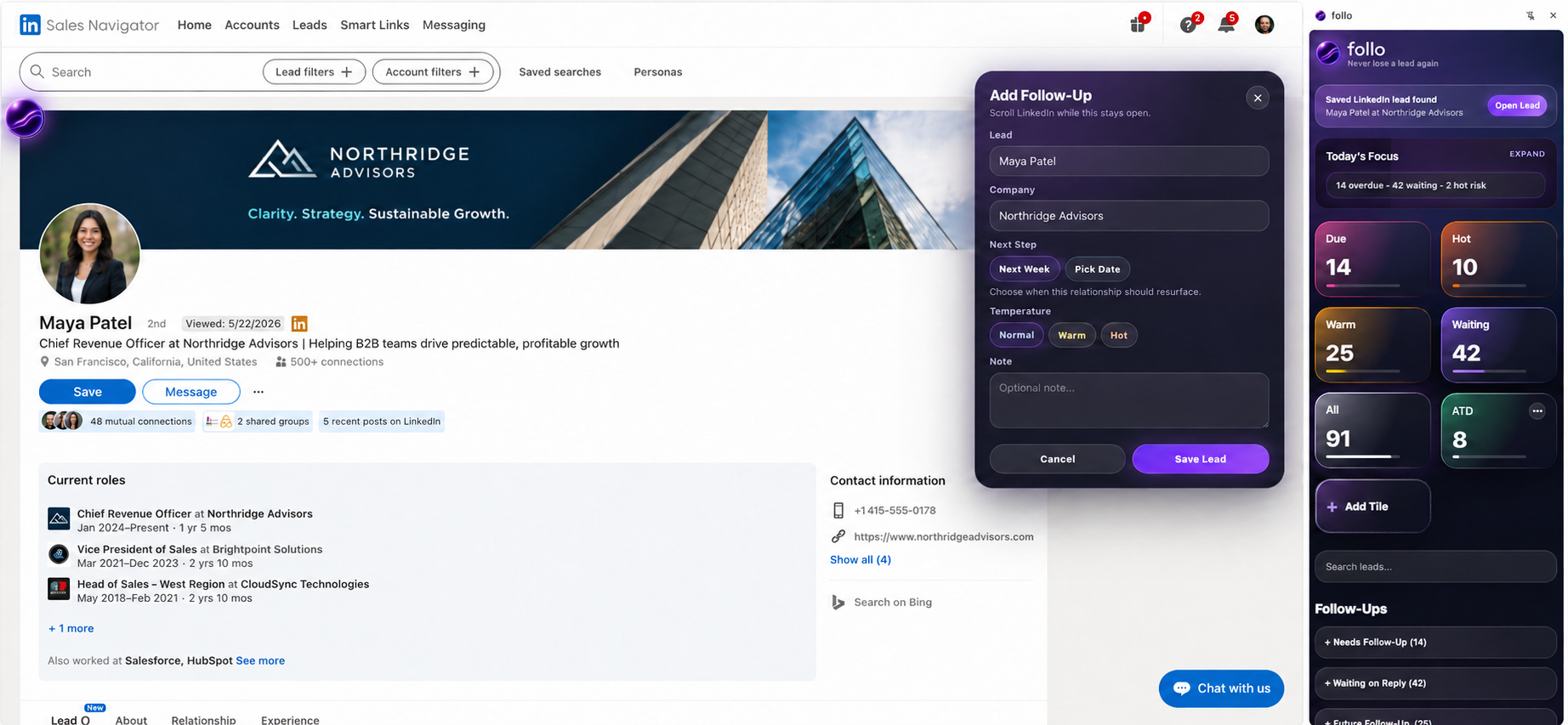
Start with the orb, right where you work.
- Open the page.Go to the Gmail thread, LinkedIn profile, Salesforce record, or HubSpot page containing the lead.
- Select the follo orb.On supported Gmail, LinkedIn, Salesforce, and HubSpot pages, the orb helps you capture the lead in front of you.
- Choose and review.Confirm the name, company, email, source page, temperature, and first follow-up date.
- Save.Nothing is added until you choose to create the lead.
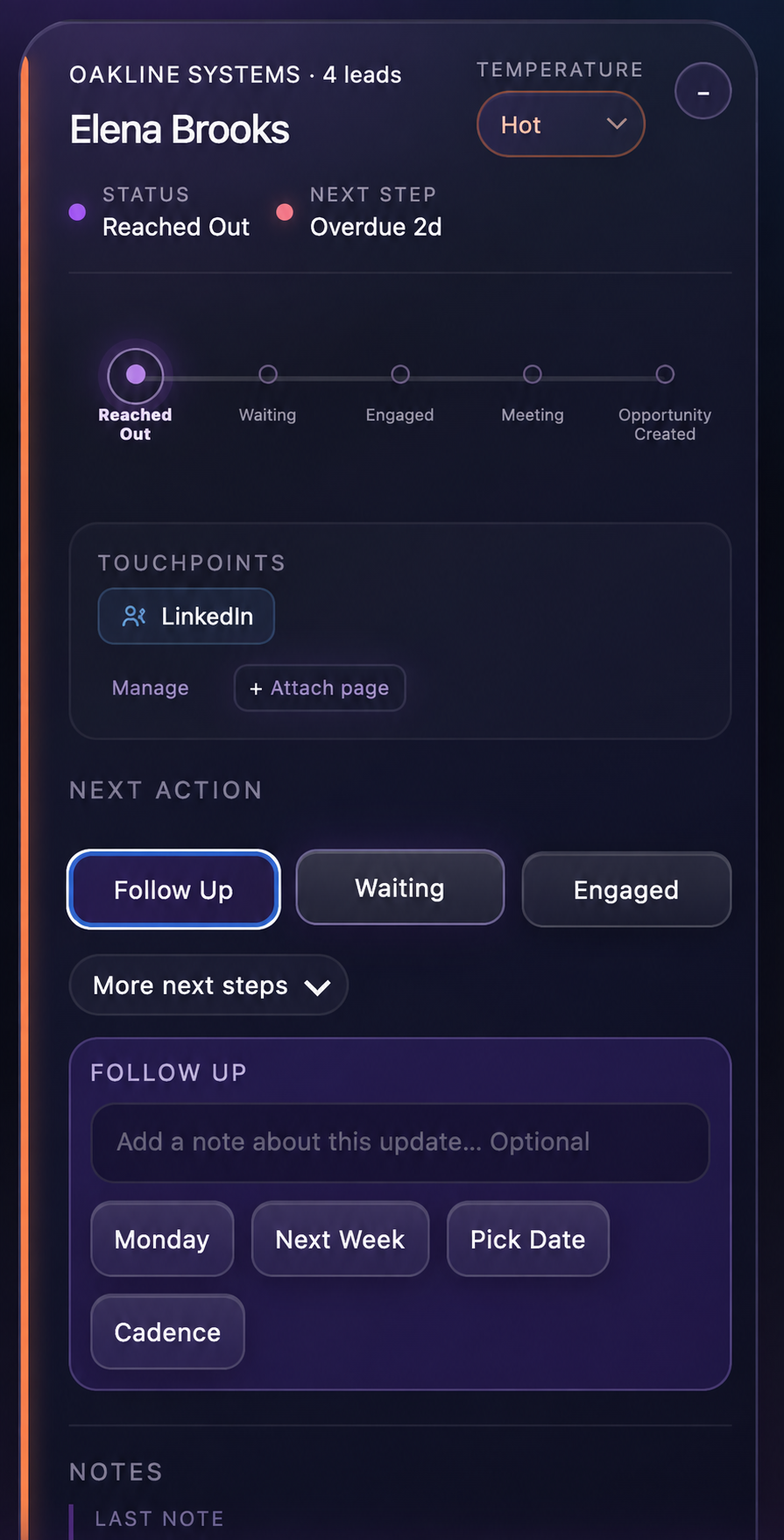
Give every active lead a clear next step.
Reached Out, Waiting, Engaged, Meeting, and Opportunity Created describe where the relationship stands.
Follow Up, Waiting, Engaged, Meeting, and other actions describe what should happen next.
Tomorrow uses the next business day, Next Week schedules quickly, and Pick Date gives you exact control.
When you update a next step, add an optional note in the same flow. Keep it short: what happened, what matters, and what you want to do next.
Need to pick up the work first? Open a saved lead’s Touchpoints to return to its email thread, CRM record, profile, or other source page. Use Attach page to keep another page with that relationship.
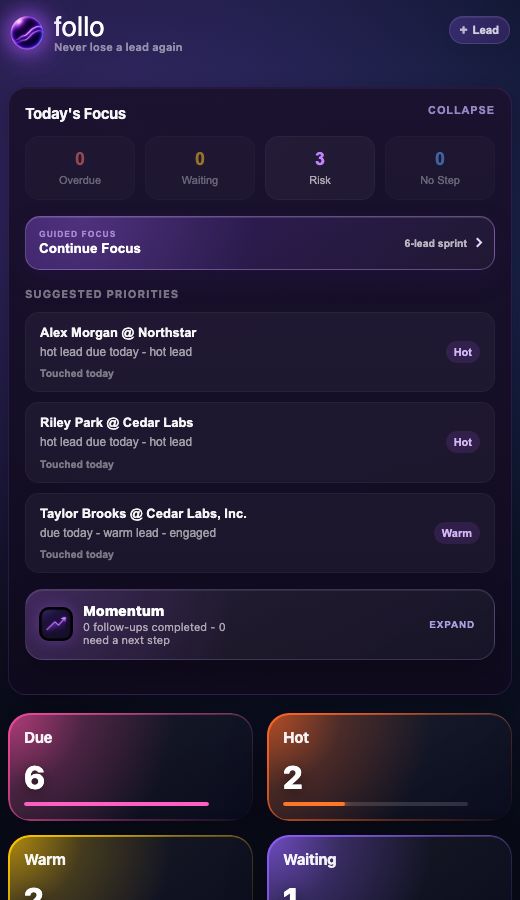
Start with the leads that need you now.
Today’s Focus uses due dates, inactivity, temperature, relationship stage, and missing next steps to organize the work that deserves a look.
- Overdue: a promised follow-up date has passed.
- Waiting: the relationship is waiting on a response or next touch.
- Risk: an important relationship may be going quiet.
- No Step: an active lead has no clear next action.
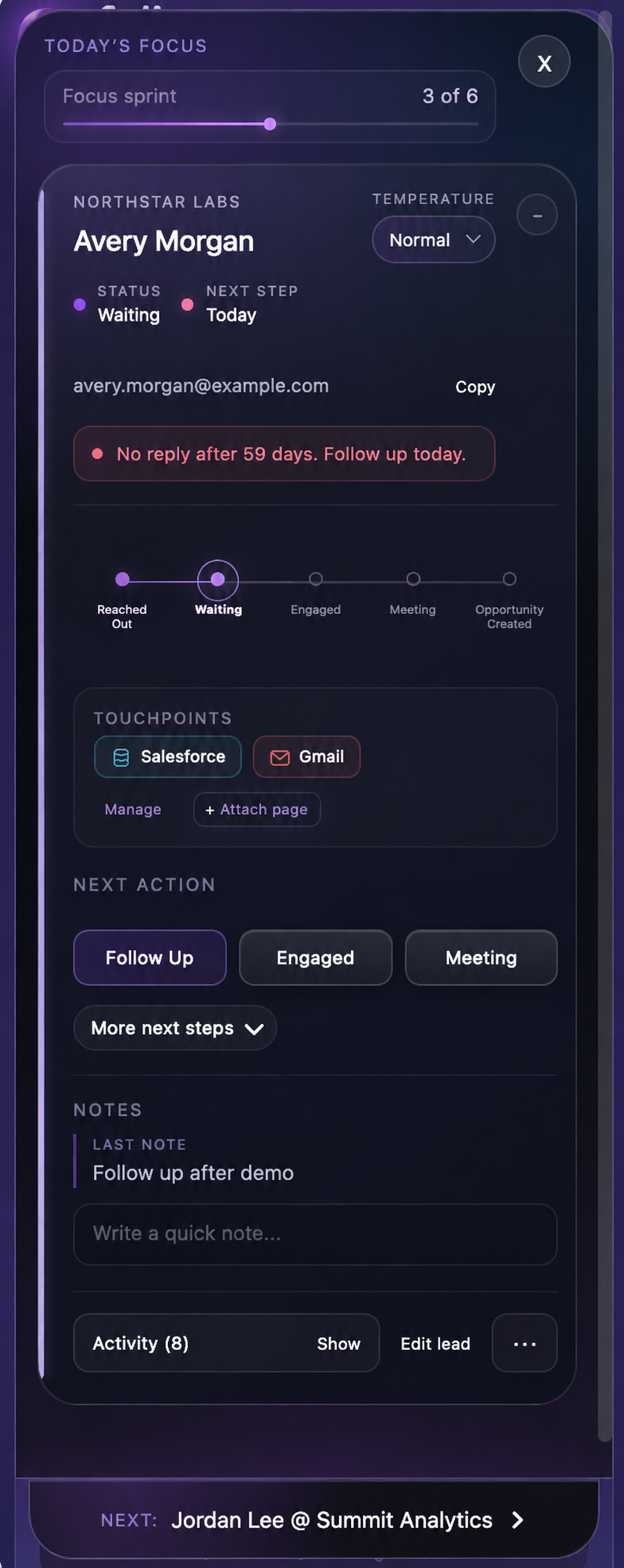
Select any tile to work that queue in Spotlight. Or start a Focus Sprint, choose the number of leads you have time for, and work one relationship at a time.
Plan several touches without automating the relationship.
Use a cadence when you already know the next few dates on which you want the relationship to return. Choose up to six dates, then start the cadence.
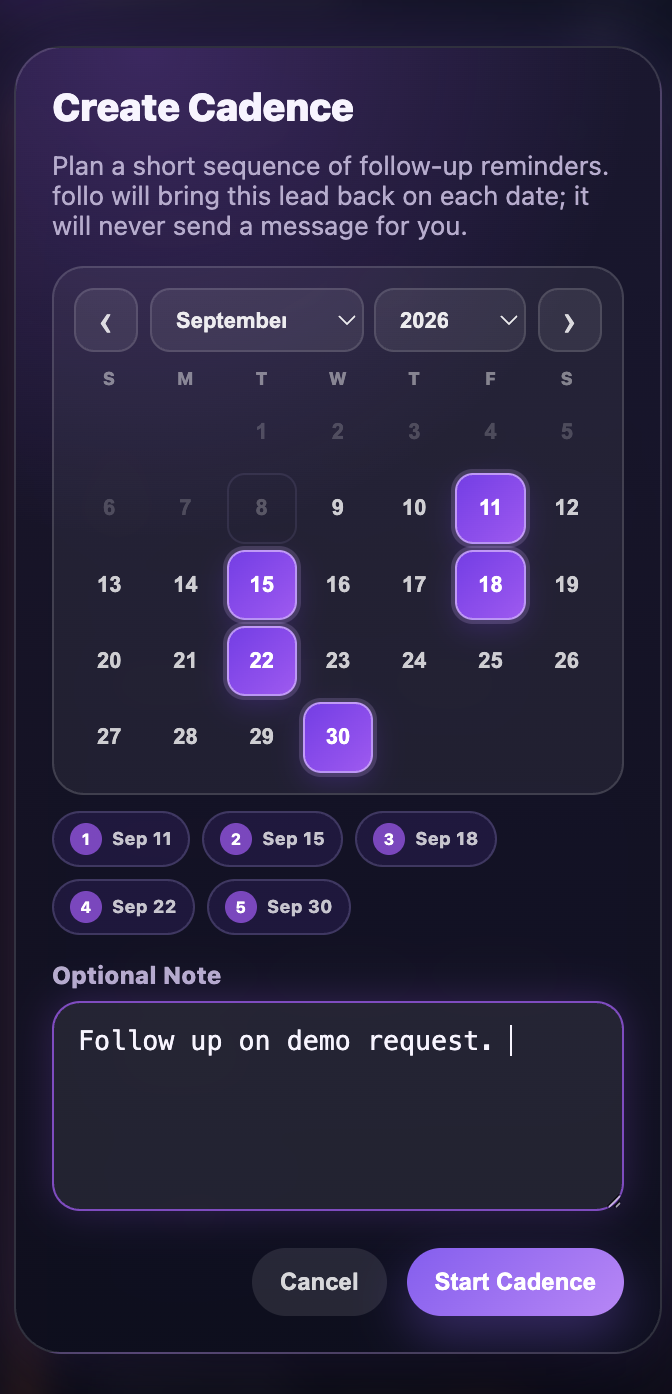
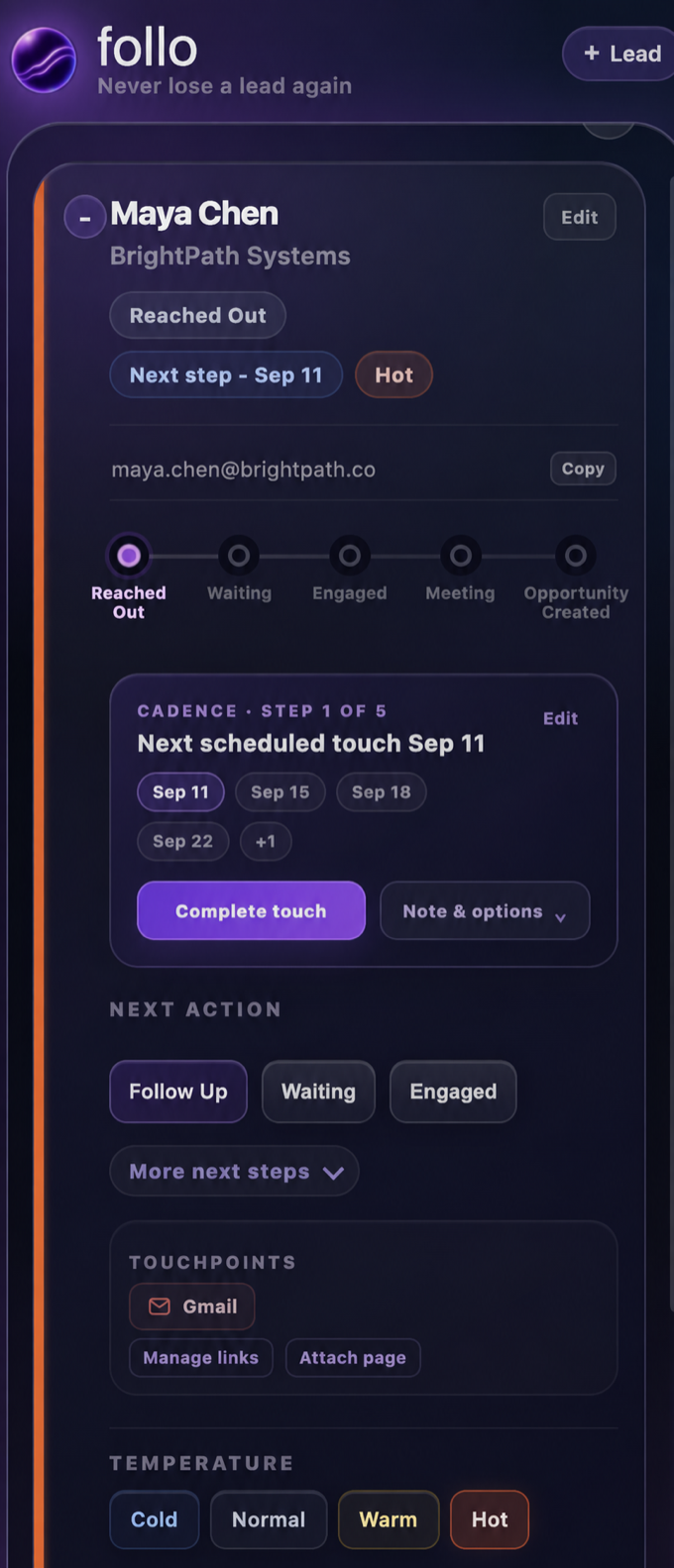
A cadence never sends an email or message. Open Note & options to add context, edit future dates, or end the cadence.
Work the account without losing the person.
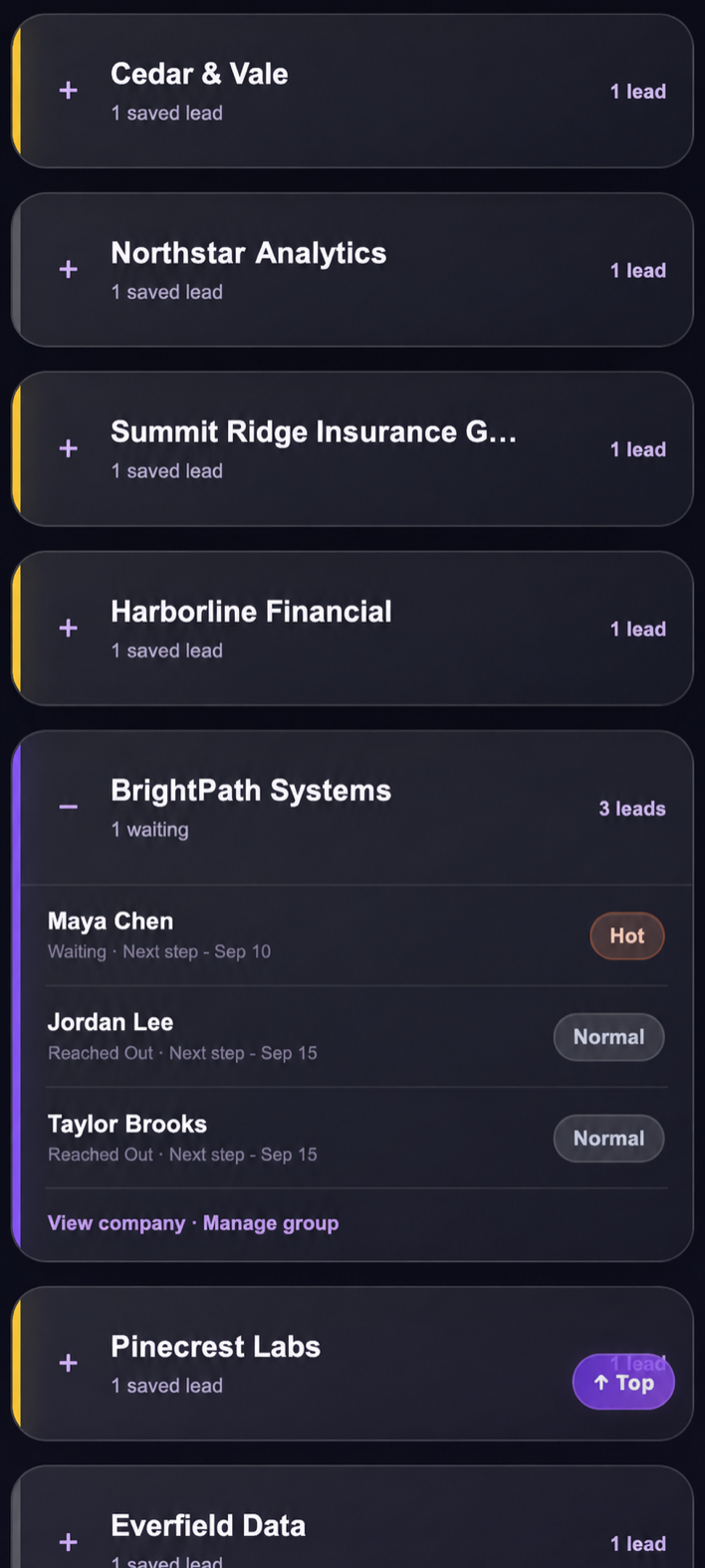
Open Companies to see saved leads grouped by account. Expand a company to compare its contacts, stages, temperatures, and next steps without turning individual relationships into one generic record.
- Expand a company.See every saved contact at that account.
- Open a lead.Update the individual relationship, then return to the same place in the company list.
- Manage the group.Correct or reorganize the company when contacts need to be grouped differently.
Measure progress, not motion.
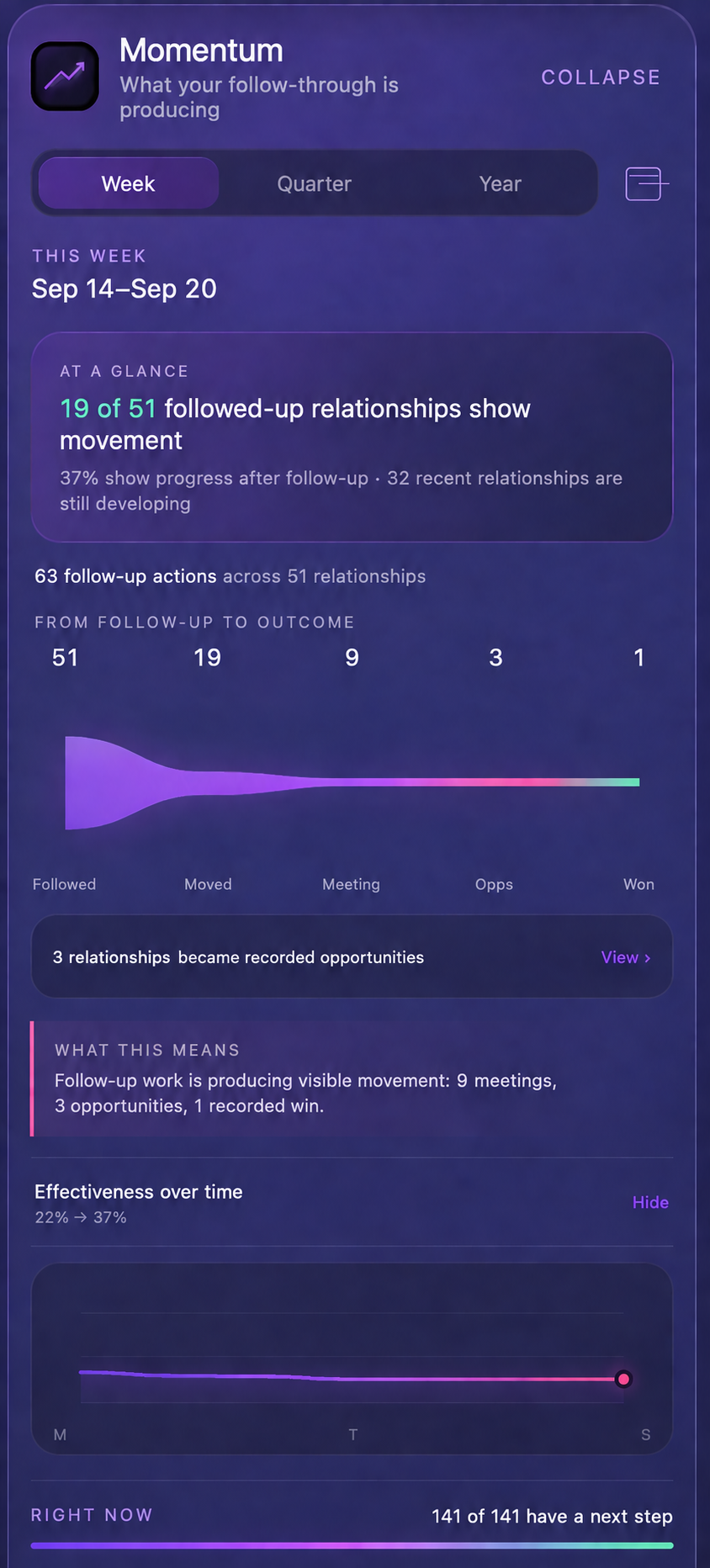
Momentum starts with the relationships you followed up with and shows the recorded outcomes that followed. Switch between Week, Quarter, and Year to see whether the work is going somewhere—not only how many touches you logged.
- Followed up: relationships with recorded follow-up activity in the period.
- Moved: relationships with recorded progress after follow-up.
- Meetings, opportunities, wins: later outcomes recorded for those relationships.
- Relationship view: open the leads behind each stage.
Momentum is directional, not a forecast or proof that follow-up caused an outcome. Its story improves as you record your touches and next steps in follo.
Let follo bring you back—without interrupting the work.
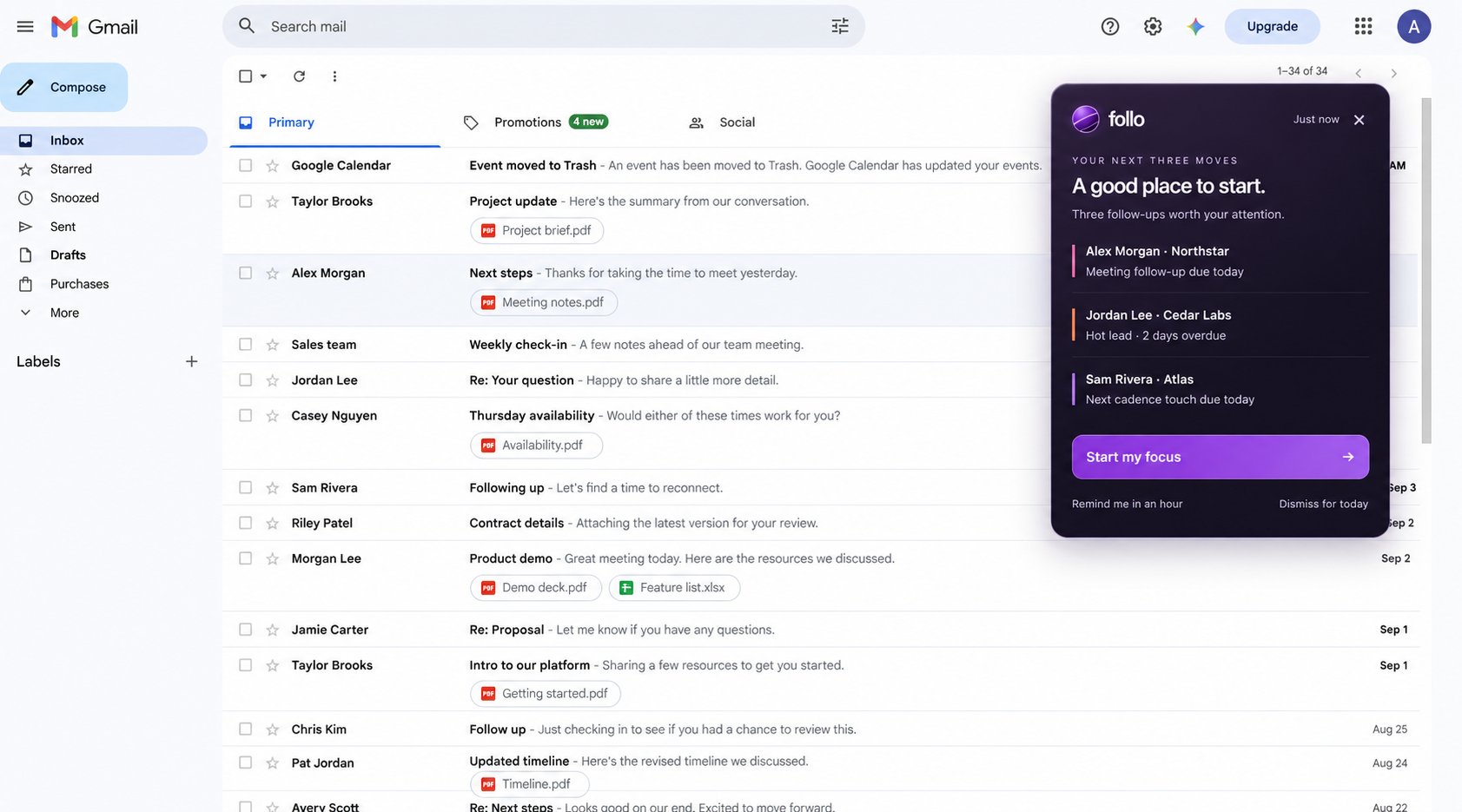
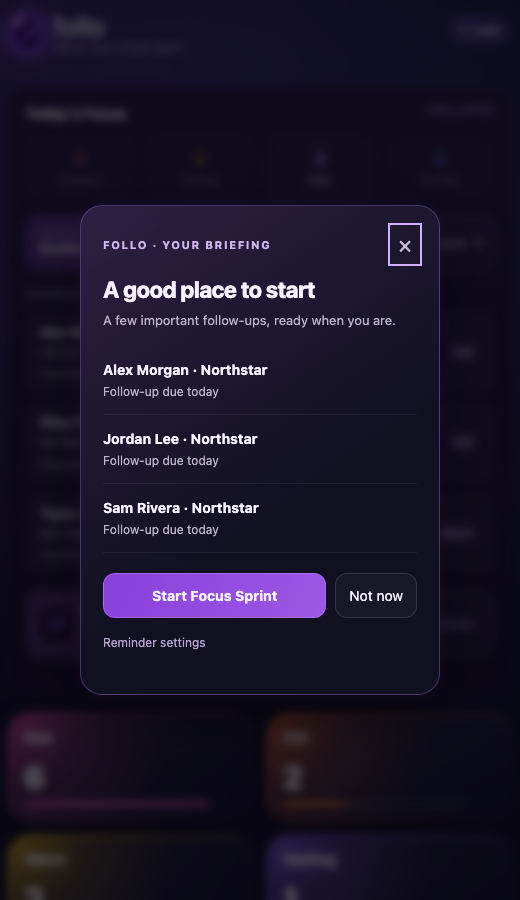
When follo is not already open, a compact browser card reminds you that priority leads are waiting. It stays available until you start, snooze, or dismiss it. If the card cannot appear immediately, a persistent Chrome notification holds your place and follo offers the card when you return to an accessible page.
Open My briefing inside follo whenever you want the same focused summary on your terms. Reminder controls are available in follo settings.
Keep a backup of the relationships you saved.
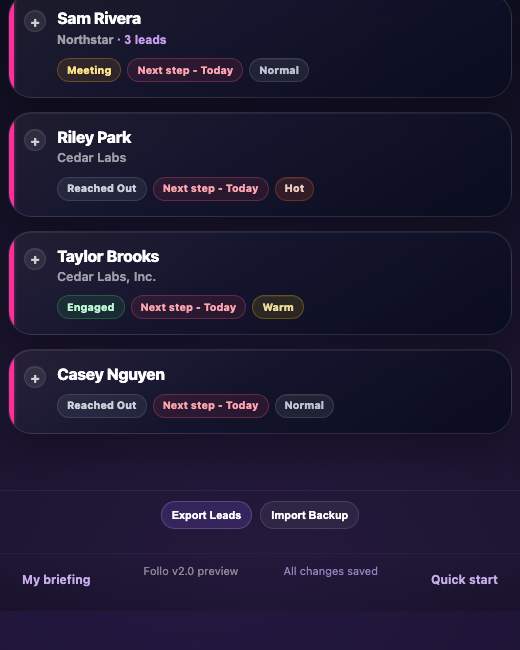
Your lead records stay in Chrome extension storage on your device; follo does not keep a server-side copy of your lead list. Use Export Leads near the bottom of the side panel to create a backup, especially before uninstalling the extension, clearing Chrome data, or changing browser profiles.
Create a file containing your saved follo records.
Restore that file from the same area in follo.
Read the complete follo Privacy Policy for details about local storage, website access, and optional Pro validation.
Stay free—or make room for more leads.
follo is free forever for up to 15 saved leads, with every current feature included. follo Pro removes the 15-lead plan limit and is designed to hold the full active workload of an individual sales professional.
When something does not look right.
The orb is unavailable, and + Lead did not find the right contact.
On a page without the orb, highlight the contact details and select + Lead again. You can always enter or correct the fields manually before saving.
A saved lead is not being recognized.
Open the full email thread, profile, or CRM record so the identifying details are visible. If the page recently changed, refresh it once.
I do not see a reminder.
follo does not show the browser reminder while its side panel is already open. Also check that Chrome notifications are allowed for the extension.
I am moving to another browser profile or computer.
Export your leads first, install follo in the new Chrome profile, and import the backup there.
Tell us what happened, the website you were using, and the steps that led to it.