

Save it. Schedule it. Work it. Update it.
You do not need to rebuild your sales process around follo. Keep working in the tools you already use and let follo become the small layer that remembers what deserves your attention next.
Capture an important person before you leave the page.
Choose the next action and when the relationship should return.
Open Today’s Focus or start a Focus Sprint instead of scanning every list.
Record what happened, add a quick note, and set the next touch.
Set up follo once.
- Install follo.Add it from the Chrome Web Store.
- Pin the extension.Select Chrome’s puzzle-piece icon, then pin follo so it is always easy to open.
- Open the side panel.Select the follo icon. The panel stays beside the page where you are working.
- Open Quick setup.Follow Reminders → Discovery → Save a lead. Choose your reminder time, connect Gmail if you want suggestions, then save someone with a date. Return through Settings → Quick setup. A temporary Finish setup checklist appears while you still need it.
- Choose your email workflow.Gmail / Google Workspace offers Discovery. For Outlook on the web or other email, continue with capture and reminders; use + Lead to save a person.
- Save one real lead.Use the orb on Gmail, LinkedIn, Salesforce, or HubSpot, or use + Lead in the panel. Already have a list? Quick setup also offers Import CSV.
Save the active relationships that deserve another conversation. Reminders and Discovery are optional; Finish later lets you return to your work and complete setup when it suits you.
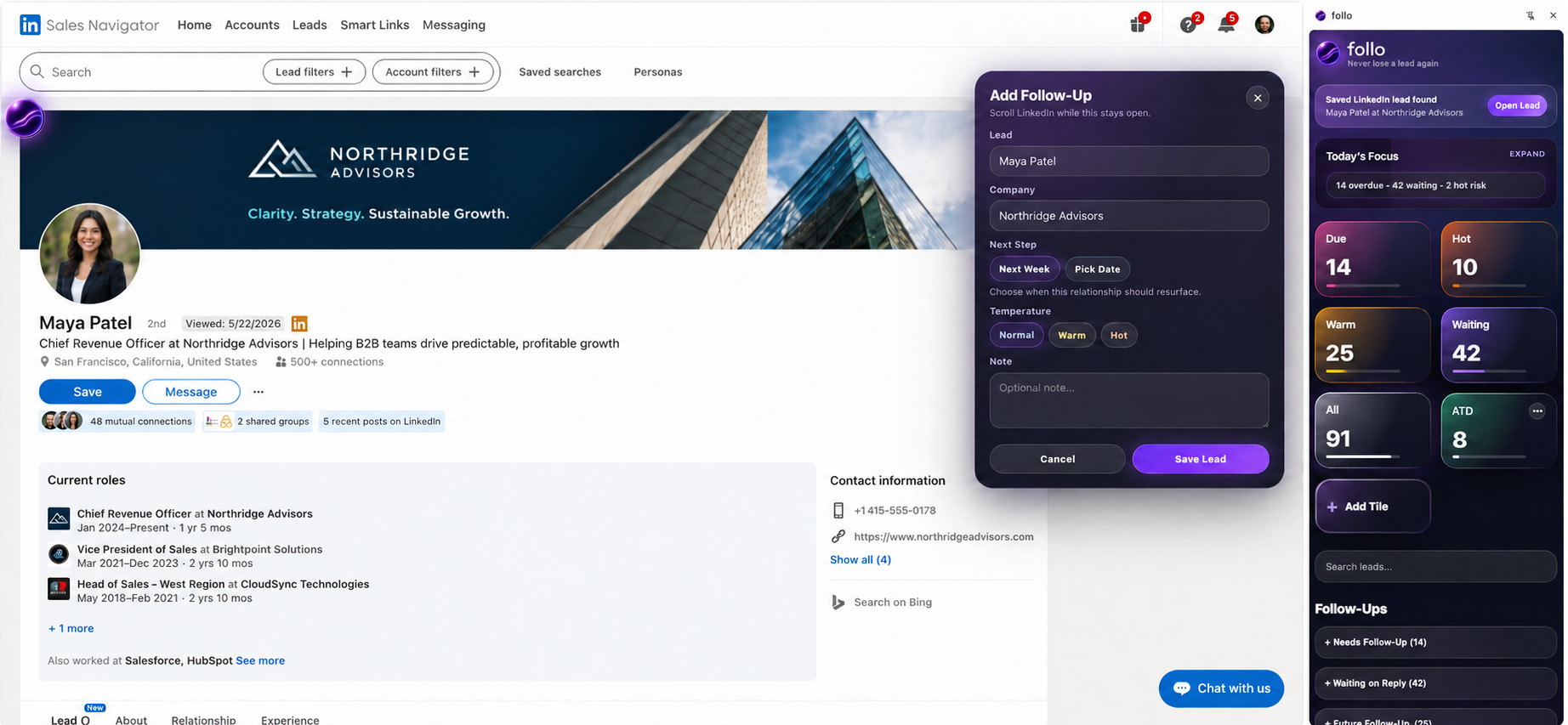
Start with the orb, right where you work.
- Open the page.Go to the Gmail thread, LinkedIn profile, Salesforce record, or HubSpot page containing the lead.
- Select the follo orb.On supported Gmail, LinkedIn, Salesforce, and HubSpot pages, the orb helps you capture the lead in front of you.
- Choose and review.Confirm the name, email, company, source page, temperature, and actual follow-up date. Company is optional. Add a personal note, up to two labels, or a cadence if useful.
- Save.Select Add to follo. If access is needed, Allow & add requests permission for that site and continues the save. A declined permission or failed save keeps your draft available.
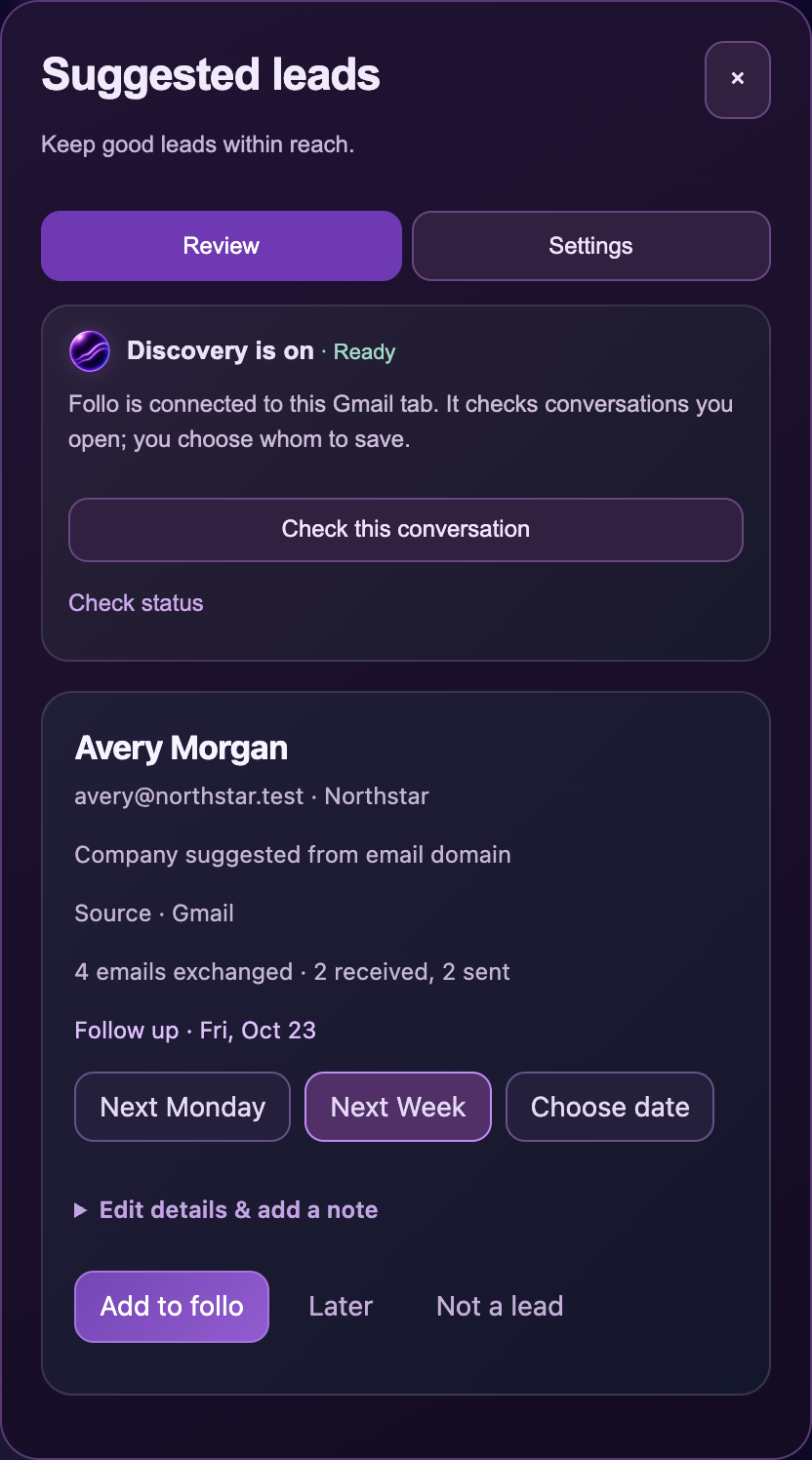
Catch people you might forget.
Discovery can suggest people you have been emailing who are not saved yet. It is off until you enable it, and every addition is your choice. Start in Settings → Discovery or the Discovery step in Quick setup.
- Connect your inbox.Enter the Gmail mailbox address you are viewing. Select Allow Gmail & enable Discovery and approve Gmail access. If access is already allowed, select Enable Discovery.
- Open conversations.Open or reload Gmail after enabling access. Browse conversations normally and leave their loaded headers visible for a few seconds. Discovery observes conversations you open; it does not search unopened mail.
- Review the person.Select Review & add on the purple invitation, or open Suggestions · N in the panel. Confirm the person, email, source, company, and displayed follow-up date. Edit details & add a note opens the editable fields.
- Choose the next step.Use the date shortcuts or Choose date, then select Add to follo. The confirmation shows the saved person and date, with Undo and Edit details.
Which conversations qualify?
Within the last 30 days, follo needs three distinct observed messages including at least one sent and one received, or four sent messages. Same-day exchanges count. Personal Gmail, Outlook, and other personal contact addresses can qualify when observed in your Gmail inbox.
The conversation must identify one other person through complete sender and recipient headers, exact message IDs, and dates. Reopening the same message does not count twice. Your own addresses and work domains, ignored people or domains, automated/shared mailboxes, ambiguous or group conversations, and saved or possible duplicate leads are withheld.
Permitted Salesforce Lead/Contact and HubSpot Contact detail pages can supply verified CRM context and source links for a matching person. CRM visits alone do not qualify a suggestion; matching observed Gmail activity is required. A company suggested from an email domain is an editable hint. Review it before saving; personal email addresses may leave company blank.
Later, Close, Not a lead, and Undo
Later postpones a person for 24 hours. Their row shows when they will return and offers Review now if you want to act sooner. The × in the notification’s top-right corner is Close notification. It closes that invitation while the person stays in Suggestions; it does not mark the person Not a lead or disable Discovery.
Not a lead ignores that person, with an inline Undo. Later, you can restore them under Settings → Discovery → Aliases, exclusions & advanced preferences → Ignored people & domains.
Undo after adding a lead returns the person to review when the saved record is still unchanged. If it has since changed, follo protects that work and explains why Undo is unavailable. Other people's pending suggestions and drafts remain available.
If a saved person has another verified source, follo may offer Add source link. Review that link to keep it with the existing lead instead of creating another person.
Quiet suggestions and mailbox exclusions
Clear Show quiet browser suggestions and save Discovery preferences to use only the panel list. Automatic invitations wait for your choice and temporarily defer while you type or a follow-up reminder takes priority. Limits of two new invitations per local day and one per person per 24 hours affect pop-ups; multiple eligible people can still wait in Suggestions.
Under Aliases, exclusions & advanced preferences, list your aliases under Other addresses I send from and add any Additional company domains to ignore, then save Discovery preferences. Your work-email domains are excluded automatically. An unconfigured or unclear Gmail mailbox pauses observation.
Advanced detection mode offers Off, Review suggestions, and Shadow — test detection quietly. Shadow collects local evidence without suggestion invitations or counts. Use Open diagnostics to inspect its decisions.
To stop observation, clear Suggest people I’ve been emailing and select Turn off Discovery. Clear Discovery data and turn off separately clears the local evidence, settings, and ignored list after confirmation; your saved leads remain.
Open the Gmail conversation, then open Suggestions in follo. The status card checks the current Gmail tab and offers the relevant action: Connect Gmail, Confirm Gmail address, Reload Gmail, or Check this conversation. You do not need to open Diagnostics for these recovery actions.
Check this conversation can use Gmail’s own Expand all to load reply headers. Checking or refreshing status preserves notes, company edits and selected dates already entered in other suggestion rows. It does not send mail or save a lead.
Loaded, complete headers can count even when a message is collapsed. Fresh compact summaries may lack the exact IDs, recipients, or dates needed to count. If requested, expand the replies yourself and check again. Displayed thread totals alone are not evidence. For more detail, Settings → Discovery → Aliases, exclusions & advanced preferences → Open diagnostics explains exclusions and recorded decisions.
Automatic Discovery currently uses Gmail conversations, with optional Salesforce and HubSpot context. Outlook Discovery is not available; use + Lead in Outlook on the web. Passive Discovery does not read message bodies or store subjects or message content.
Give every active lead a clear next step.
Reached Out, Waiting, Engaged, Meeting, and Opportunity Created describe where the relationship stands.
Follow Up, Waiting, Engaged, Meeting, and other actions describe what should happen next.
Quick date choices use weekdays: Friday and Saturday offer Next Monday, and Next Week moves a weekend date to Monday. The calendar gives you exact control, including a weekend date you deliberately choose.
Select a stage on the timeline to open its next-step choices directly below it. The card stays at the timeline while you choose Tomorrow or Next Monday, Next Week, Pick Date, or Cadence. When you update a next step, add an optional note in the same flow. Keep it short: what happened, what matters, and what you want to do next.
Need to pick up the work first? Open a saved lead’s Touchpoints to return to its email thread, CRM record, profile, or other source page. Use Attach page to keep another page with that relationship.
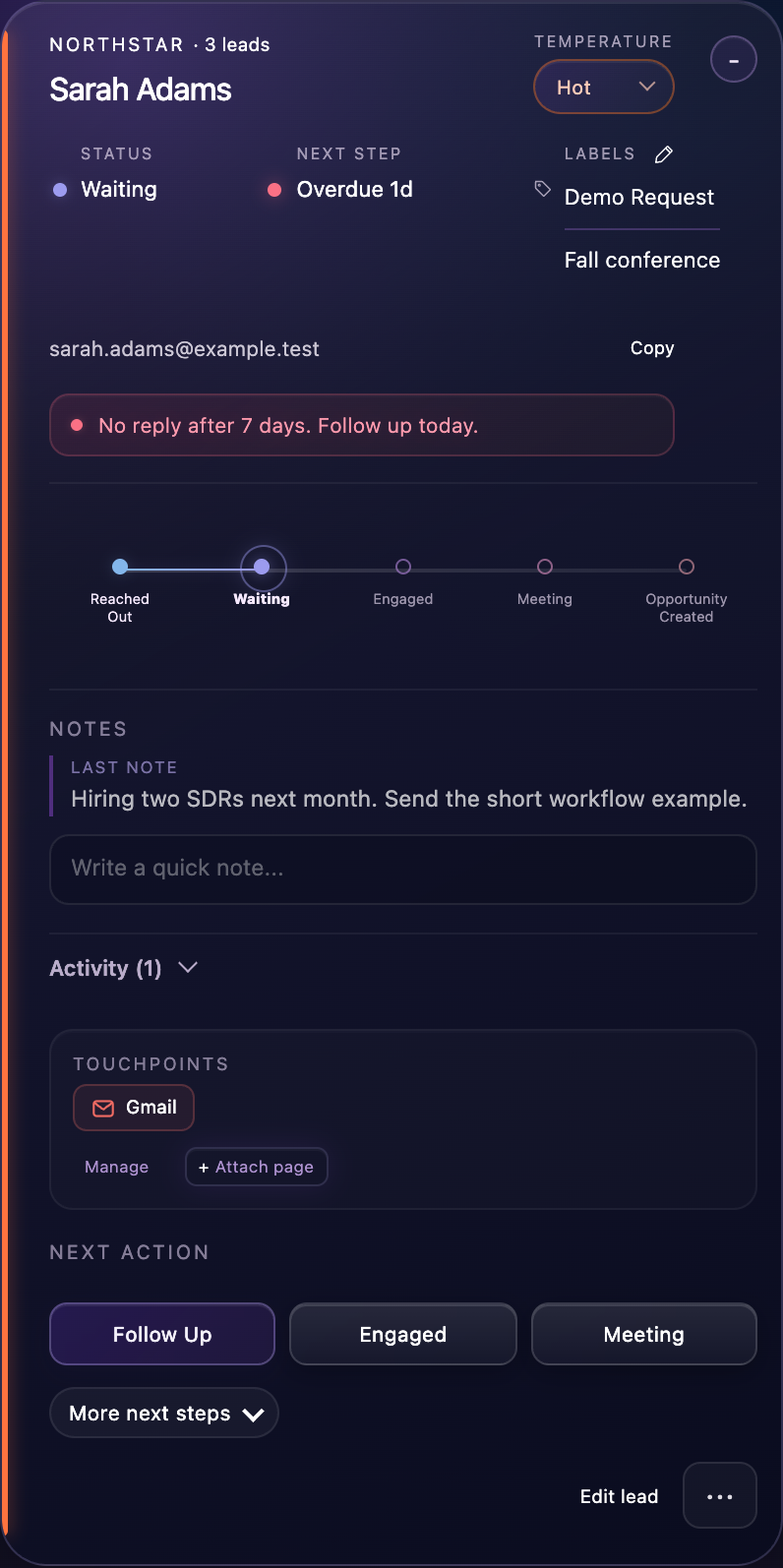
Keep your context close.
Open a lead to find Notes directly below the timeline, followed by collapsed Activity and your Touchpoints. Add a quick personal note here. The latest personal note appears in lead previews, Today’s Focus, search, and reminders. Cadence changes and other generated history stay in Activity.
Expand Activity to see your personal notes. A newly opened card starts on My notes.
Switch tabs to see notes together with recorded stage changes, cadence touches, and other lead history.
Update a saved lead after Gmail activity
When follo recognizes a send, reply, or incoming message for an existing saved Gmail lead, the panel can offer Next Week, Pick Date, Open Lead, and Not Now. Confirm a date to record the update: a sent email moves the lead to Waiting; a reply or incoming message moves it to Engaged.
This is based on activity visible while you use Gmail, rather than a background scan of all mail. Reminder clocks use outreach and replies recorded in follo. Adding a note, label, or changing a date does not record a new outreach or restart those clocks.
See who needs your attention today.
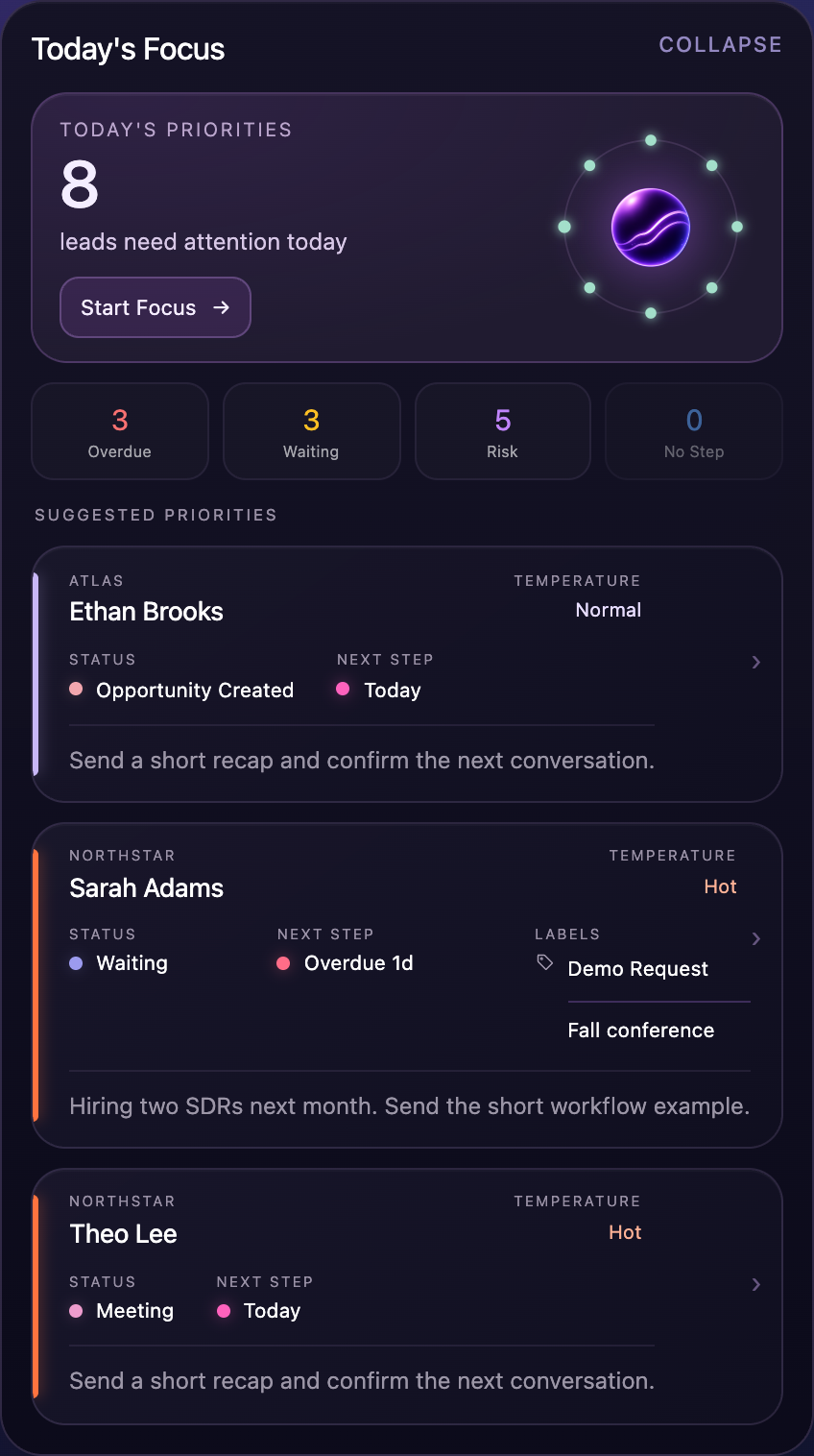
Today’s Focus contains the active relationships that need attention now. It is not your whole lead list: future-dated follow-ups stay out of today’s queue. The count, highlighted dots and focus queue use the same set of priorities.
- Choose a category.Select Overdue, Waiting, Risk or No Step. The count and highlighted dots change to that group. The same person can need attention for more than one reason, so category counts can overlap.
- Explore the glowing dots.We call this interactive view your lead constellation. Bright dots identify people matching the selected category. Dim dots are other priorities for today. Return to All priorities to see the complete daily group.
- Preview, then open.Hover over a bright dot for the person, your latest personal note and next follow-up. Click it to open that exact lead. Dim dots do not open leads. Use arrow keys to select a bright dot and Enter to open that person. Hover previews stay out of the way while a lead is open.
- Work a short queue.Start Focus takes up to ten of the highest-priority leads, one at a time. Open the source, follow up, add context and schedule the next step. Continue with another group when you have time.
Click the orb for a closer look
Click the center orb, or focus the view and press Enter before selecting a dot, to explore a larger view of today’s priorities. Choose a category, hover a highlighted lead for context, or open the person’s card. Closing the lead returns directly to the same view, with your selection and filter preserved. Close the larger view to return to the panel.
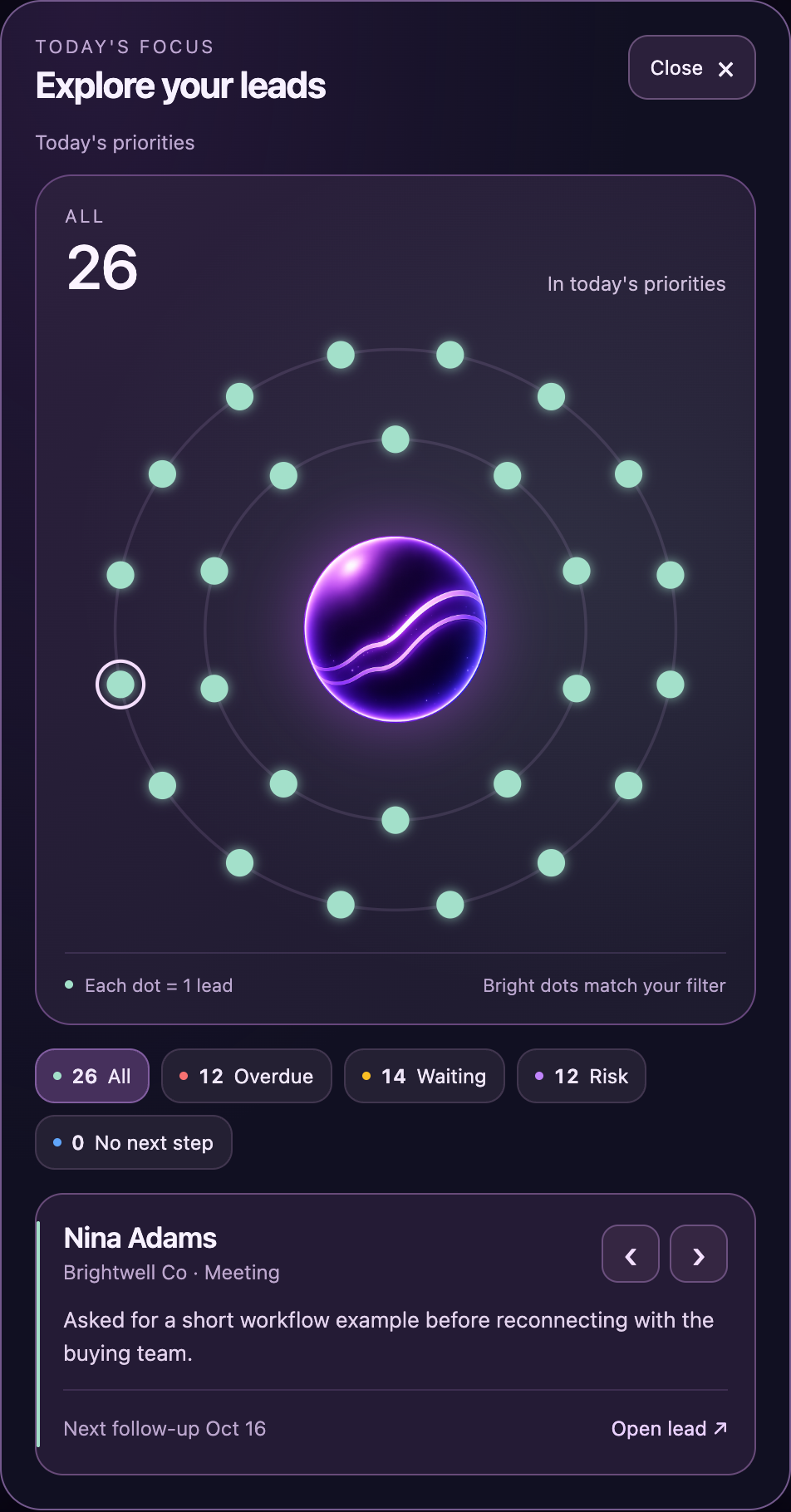
See how Overdue highlights the matching leads
Only the matching overdue leads glow. Other priorities for today stay dim, so the whole daily group remains visible.
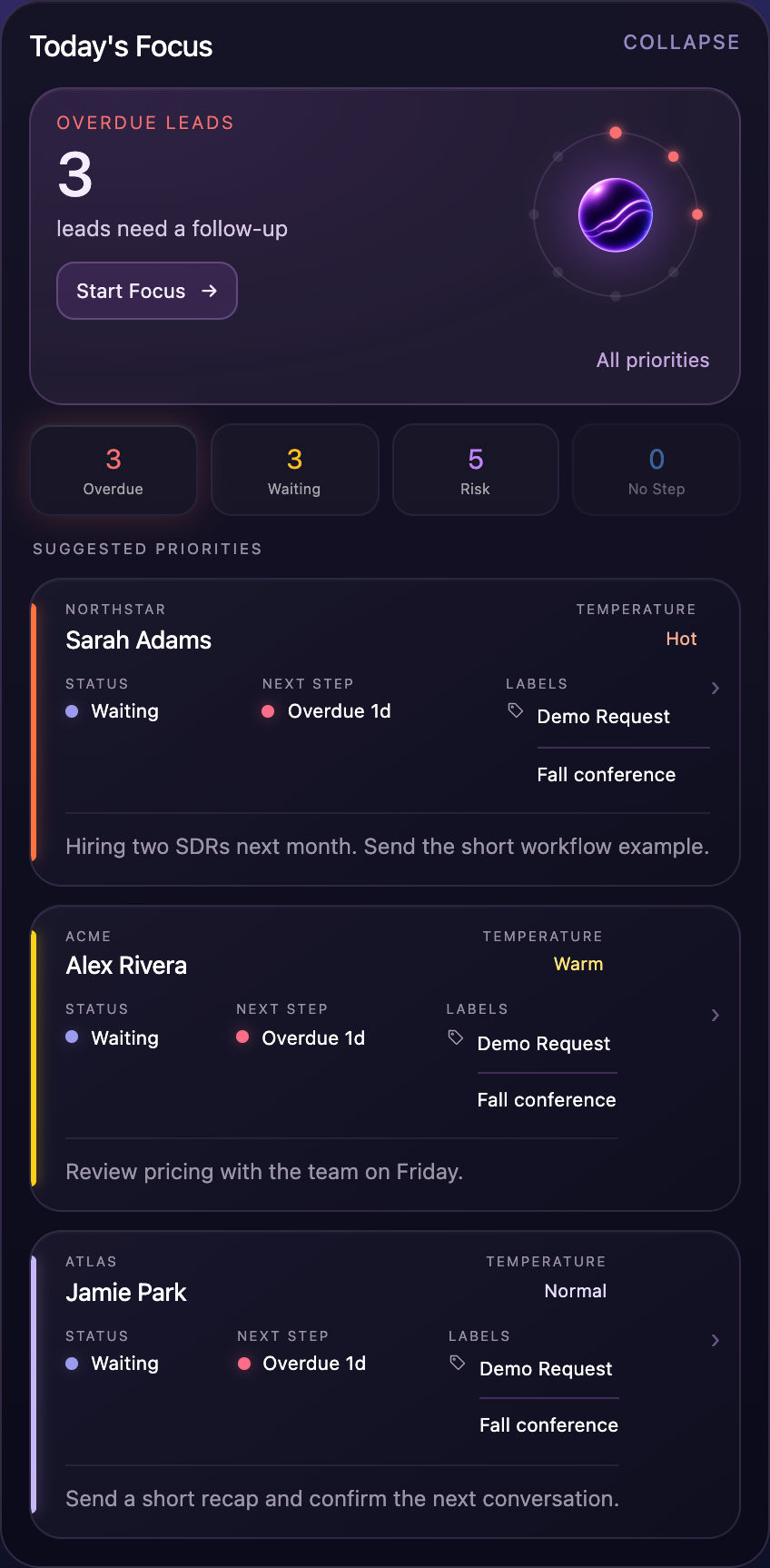
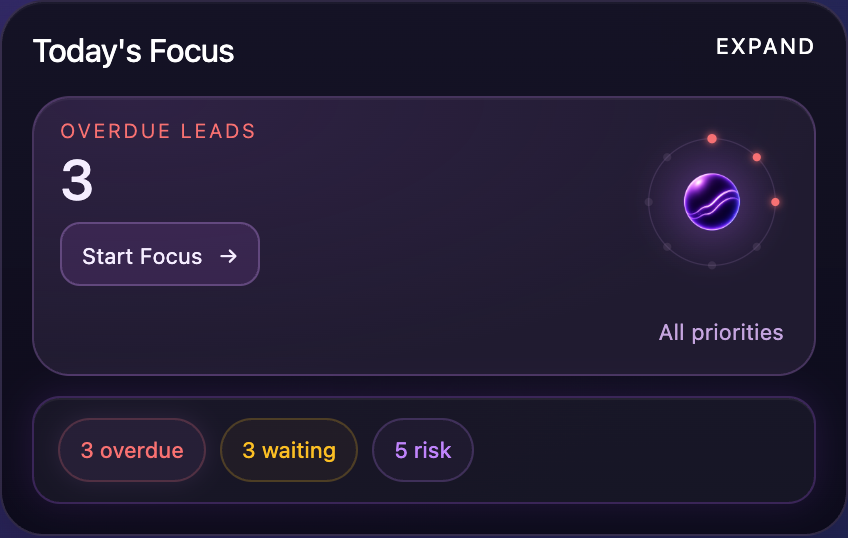
What happens when I collapse Today’s Focus?
The compact view keeps the highlighted leads and colored category controls available. Selecting a category still changes the highlighted people.
For larger queues, additional rings keep people distinct. When grouping is needed, the displayed legend explains how many leads a dot can represent; opening a bright group includes only people matching your category.
Find the right relationship quickly.
- Add a label.Use + Add label or the label pencil on a saved lead. Choose reusable labels and Save labels, or type a name and select Create & add label to create and attach it in one action. Each lead supports two labels, up to 32 characters each.
- Work that group.Select a label on a lead, then View leads for its exact active-lead filter. Use Clear to return to the regular list. Removing a label from one person keeps its name available for reuse.
- Create a tile.From the label menu, choose Create tile, or use Add Tile and select Label. Choose the saved label, tile name, and color. Label tiles count active matching people and show how many are due. You can have up to three custom tiles; Search terms tiles remain available.
- Search across follo.Use the search field near the top of the side panel to search by name, company, email, label, or note. Results appear near the top, without scrolling past your dashboard. Search includes closed leads and looks beyond the current tile. Open a person to work the full lead card, or select a company to see its saved group.
Clear the query to return to the previous dashboard and Leads or Companies view. An active query stays visible until cleared. Search uses saved local records; it does not search your mailbox or CRM.
Plan several touches without automating the relationship.
Use a cadence when you already know the next few dates on which you want the relationship to return. Choose two to six dates, then start the cadence. You can also plan those dates while saving a lead with the Gmail, LinkedIn, Salesforce, or HubSpot orb.
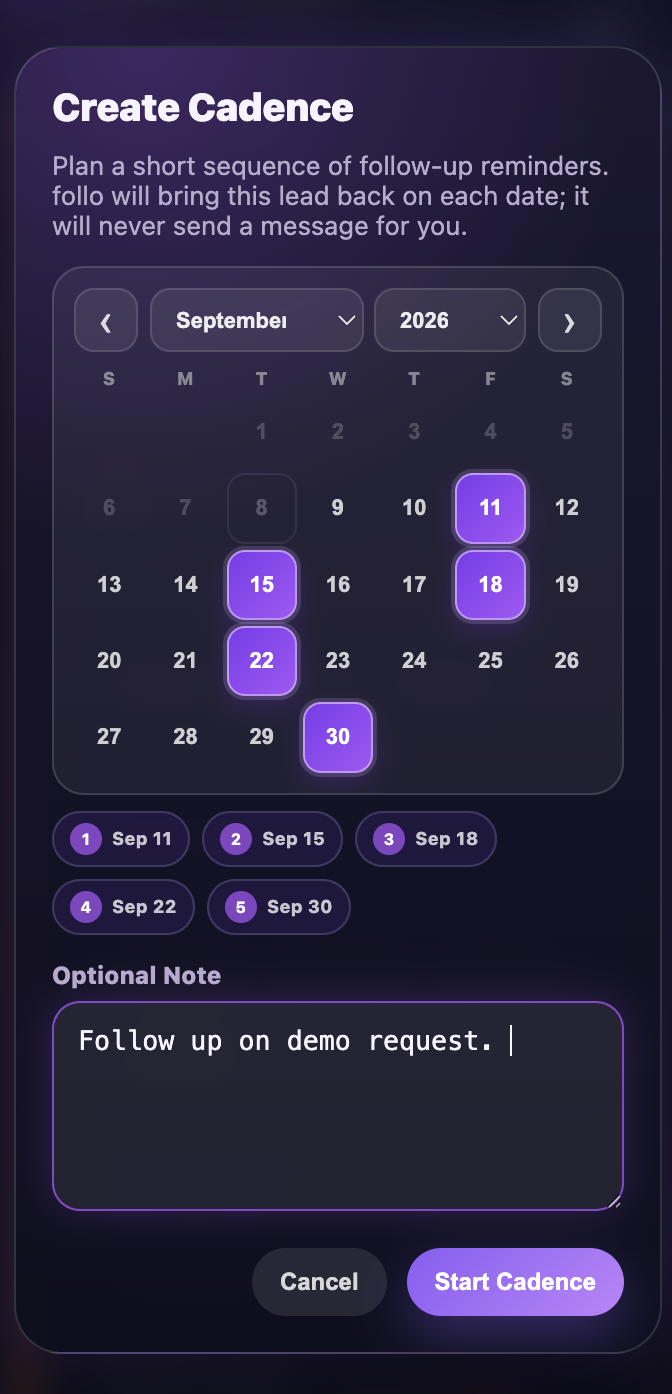
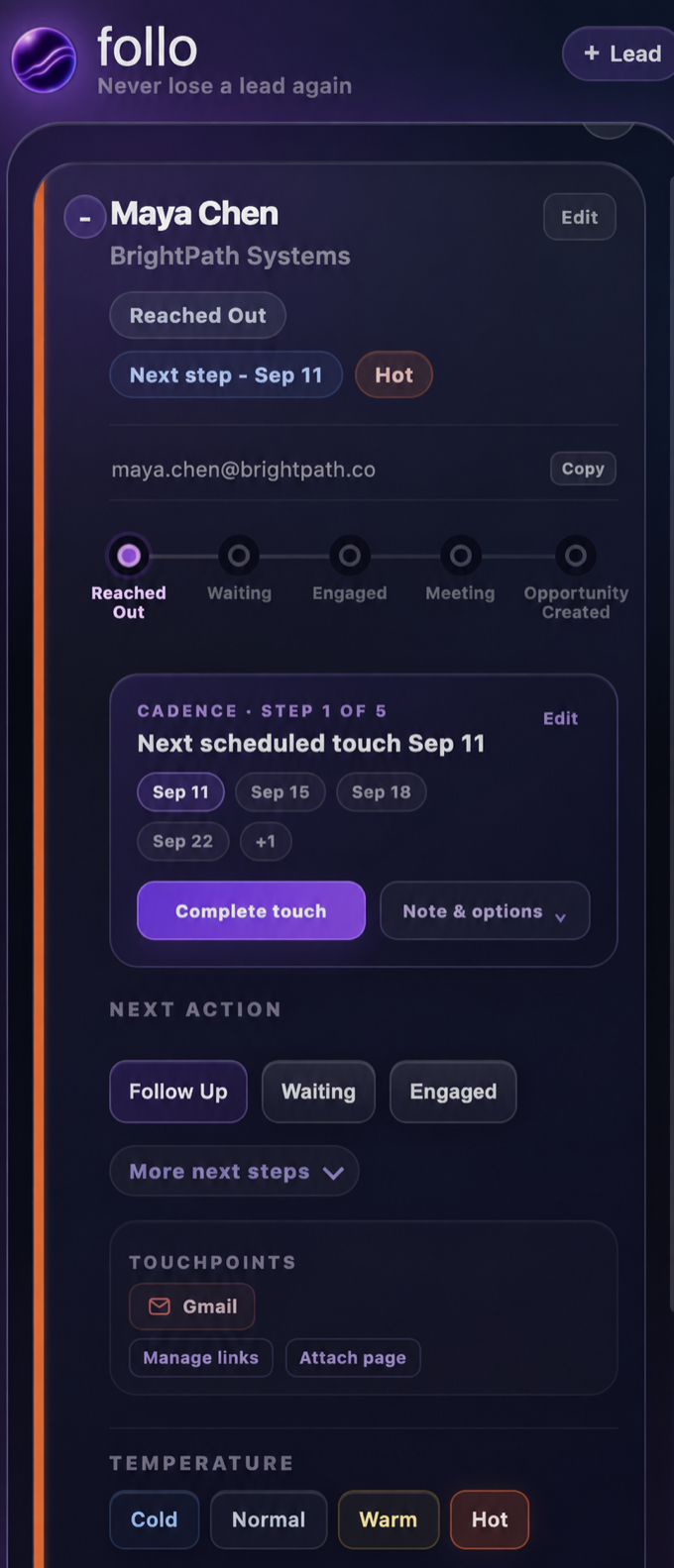
A cadence never sends an email or message. Open Note & options to add context, edit future dates, or end the cadence.
Work the account without losing the person.
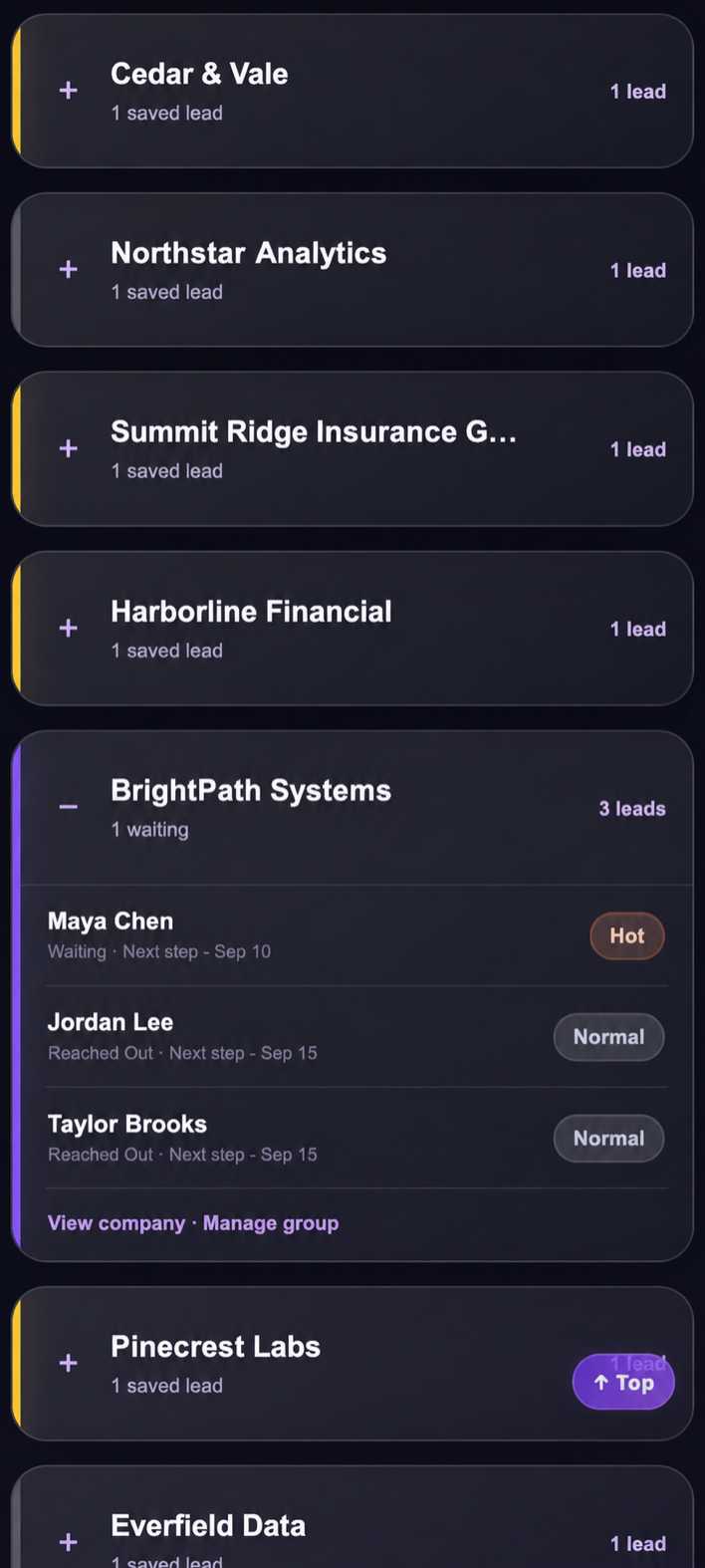
Open Companies to see saved leads grouped by account. Expand a company to compare its contacts, stages, temperatures, and next steps without turning individual relationships into one generic record.
- Expand a company.See every saved contact at that account.
- Open a lead.Update the individual relationship, then return to the same place in the company list.
- Manage the group.Correct or reorganize the company when contacts need to be grouped differently.
Follow the progress you record.
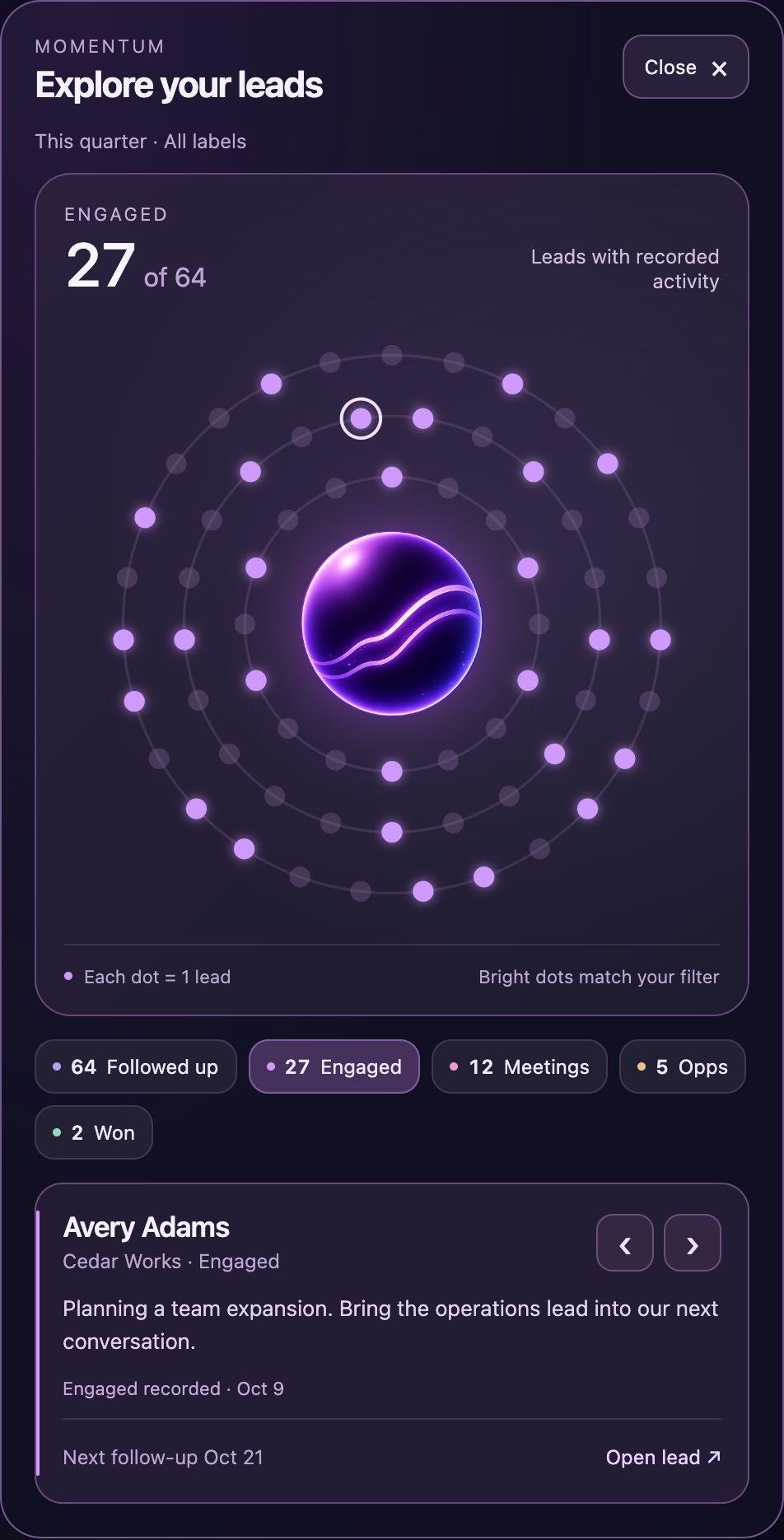
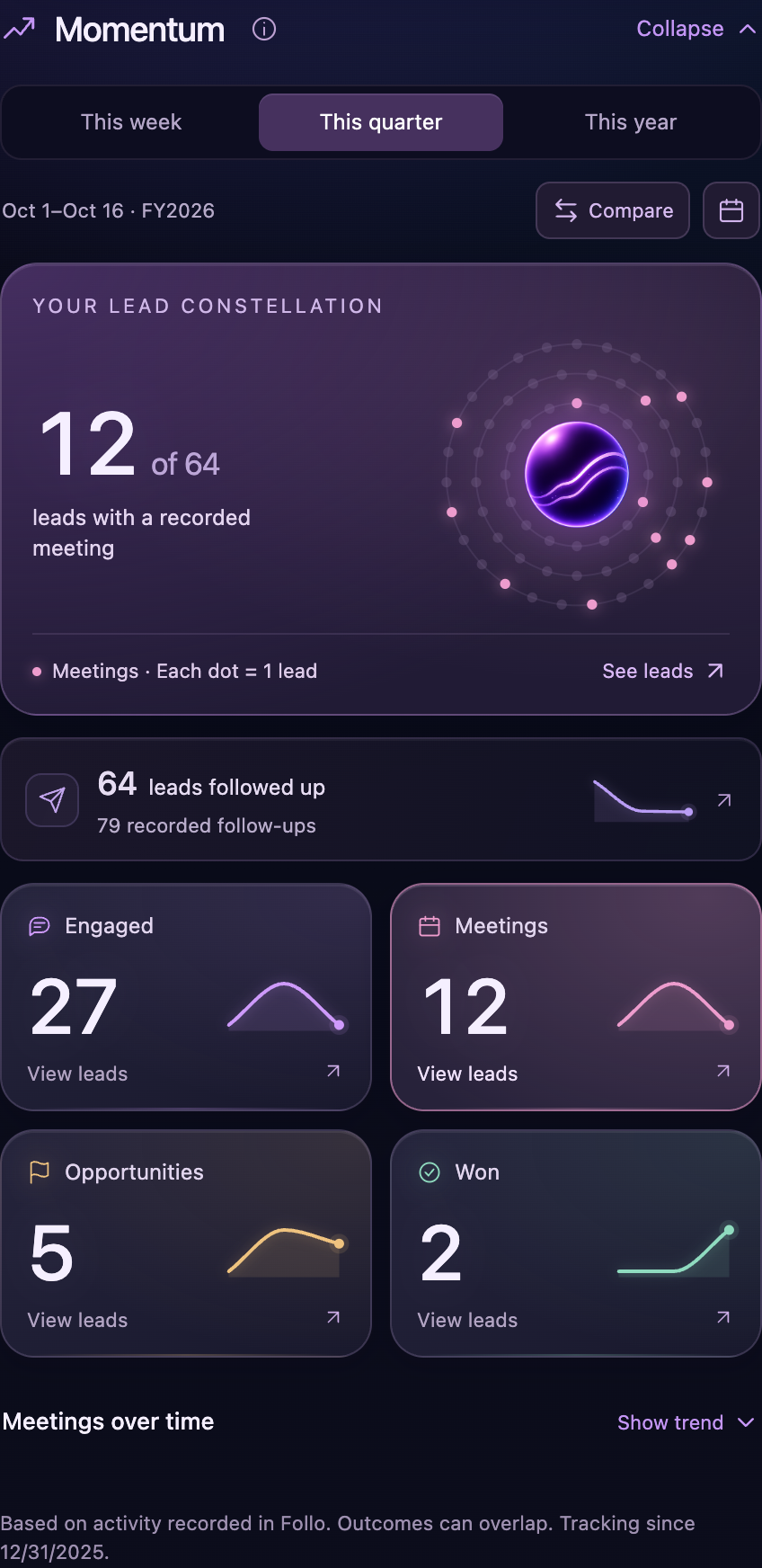
Momentum shows which relationships have recorded engagement, meetings, opportunities and wins in the selected period. Select an outcome to highlight the people behind it. The glowing dots form an interactive view of your leads—your lead constellation.
- Choose your period.Use This week, This quarter or This year. The calendar control sets the fiscal-year start used for your quarter/year view.
- Compare periods.Select Compare for the previous equivalent period. The view explains when retained history is too sparse to make a comparison. It does not invent an earlier baseline.
- Select an outcome.Engaged, Meetings, Opportunities and Won count distinct people with that outcome recorded in the selected period. A separate completed follow-up is not required; an older or unrecorded outreach does not hide a real stage update. Engaged remains counted if the person later reaches Meeting or Won. Select a tile to explore its matching leads. The compact Followed up row opens only people with a recorded completed follow-up; its secondary count shows recorded follow-up actions.
- Explore a label.Open All labels to see how each group is progressing. Choose a label to update the counts, lead lists, charts and comparison. Each share uses that label’s people with recorded activity in the selected period. Both periods use current labels; groups can overlap. Dot positions stay fixed, and only matching bright dots can be opened.
- Explore a bright dot.Hover for context, or click to open the person. Dim dots are outside the selected outcome. For a grouped dot, only matching people appear. Only leads still saved in follo appear. Deleted or unmatched contacts are excluded from counts, dots and both comparison periods; saved Won and Lost leads still count.
Explore the people behind the progress
Click the center orb to open a larger view of your selected period, label and outcome. Select another outcome, browse matching people, and open a lead to add context or record a next step. Closing the lead returns directly to the same map. Closing the map takes you back to Momentum.
Use Momentum without keeping the dashboard open
Collapse the section for a compact view of your leads and their recorded outcomes. The period selector and bright-dot interactions stay available.
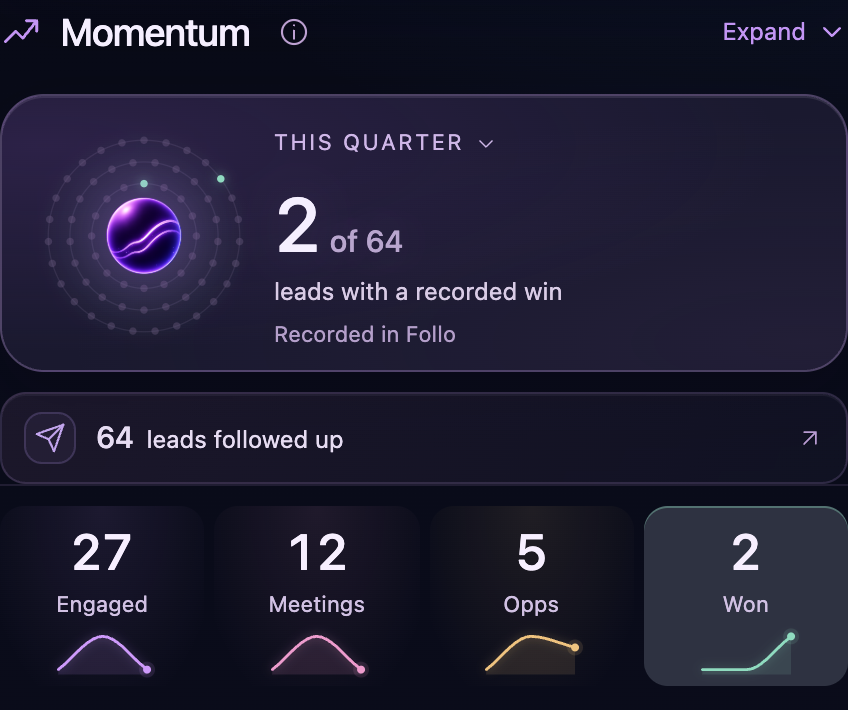
Momentum reflects activity recorded in follo, not a scan of all your email or CRM work. Outcomes can overlap. It shows recorded progress, not conversion attribution, a forecast, or proof that a follow-up caused a win.
Let follo bring you back—without interrupting the work.
Enable reminders through Settings → Reminders. Choose Weekday reminders, a local time from 6:00 AM to 6:59 PM, and select Enable reminders or Save reminders. Browser cards appear on sites you allow while Chrome is running and the follo panel is closed.
- Review N follow-ups: opens the focused queue for the current reminder.
- Later today: snoozes the invitation for one hour.
- Dismiss for today: closes that day's invitation without changing lead dates.
- Show a test reminder: checks delivery from the reminder preferences.
The browser card shows saved lead names and context. Optional Also show desktop notifications requests Chrome notification permission; desktop messages contain no lead names or notes. Check your computer's Chrome notification settings if the test does not appear. Three dismissals pause automatic reminders; save with weekday reminders enabled to resume them.
Customize when a lead comes back
Open Customize follow-up habits. The defaults are seven days without a recorded reply while waiting, and eight days without recorded outreach. Set either interval from 1 to 90 days, or switch that rule off.
A chosen future follow-up date keeps the lead from getting an earlier habit reminder. Notes, labels, and date edits do not count as outreach. These rules use communication recorded in follo; they do not prove that no reply exists elsewhere.
Open Settings → My follow-up briefing for a short priority summary. Opening the panel dismisses automatic invitations for the day.
Make follo fit your day.
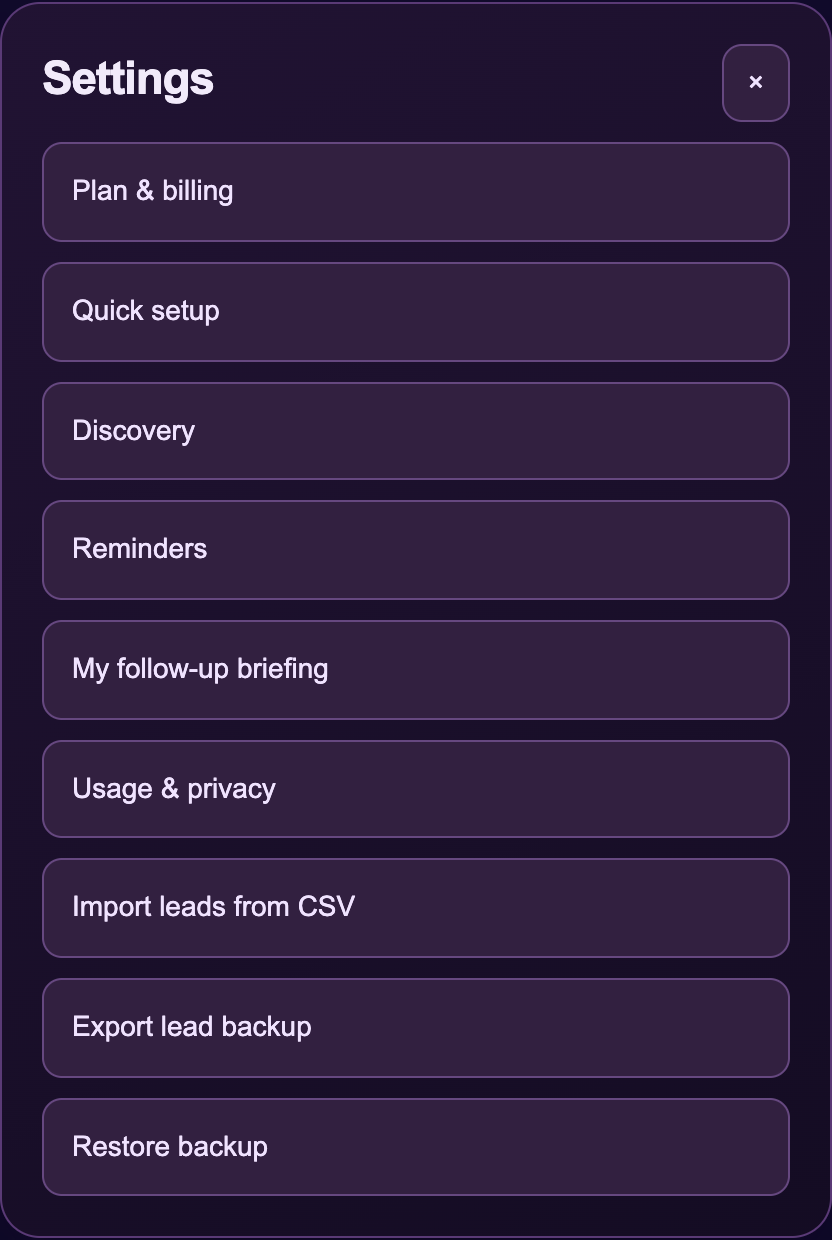
Select the gear at the top of the side panel. Settings brings the current controls together, and Quick setup can be reopened whenever you want to finish or revisit the first steps.
Quick setup, Discovery, Reminders, and My follow-up briefing.
Import leads from CSV and Undo CSV import; Export lead backup, Restore backup, and Undo last backup restore. Undo appears when available.
Plan & billing manages Pro. Usage & privacy controls optional usage analytics.
Usage analytics is off by default. Allow usage analytics permits feature-use events and count ranges through PostHog with a random installation ID. Lead names, emails, notes, messages, and source links are excluded, and there is no session recording. Keep usage private or Turn off usage analytics keeps follo fully usable without analytics.
Bring in a list with a next step.
Open Settings → Import leads from CSV. This adds reviewed new people alongside your saved leads. Processing stays on your computer; the file is not uploaded.
- Prepare the file.Select Download template, fill it in, then Choose CSV file. Use UTF-8 comma-separated CSV with column headers, up to 1 MB, 500 people per file and 32 columns. Name and Email are required; Full Name or First Name plus Last Name, and Email Address or Work Email also work. Column order does not matter. Company is optional.
- Review the rows.Check new leads, already saved or repeated rows, and rows needing attention. Open Edit details or Fix row to change a field, then Apply row changes. Uncheck a person you do not want to add. A same-name match may require Confirm separate person.
- Set the follow-up.The shared Follow-up date fills blank file dates only. File dates must use YYYY-MM-DD. Review the actual dates shown. Optionally choose or create a Shared label; existing file labels stay in place, with two labels maximum per person.
- Add the reviewed people.Select Add N leads to follo. Existing saved people and repeated emails are skipped rather than overwritten. Rows needing attention stay outside the batch; Download rows needing attention lets you correct them separately.
Extra columns, larger lists, plan limits, and Undo
The 500-person limit applies to one CSV import, not Follo’s total Pro lead capacity. Split larger spreadsheets into separate files. Each successful batch replaces the preceding batch’s CSV Undo opportunity.
The template includes Name, Email, Company, Note, Label, Follow-up Date, and Source URL. Two labels can be separated by a semicolon. Extra columns such as job title or phone number are allowed and shown as unused; they are not saved. Imported notes remain personal notes. The file does not have to match the template exactly. Importing does not record outreach, a reply, or an outcome.
Free, Pro preview, and Pro limits apply to the entire accepted batch. The review explains its effect before saving. If you need Pro, View Pro plans keeps the file and review available while you upgrade.
After a successful import, use Undo this import on the confirmation, or Settings → Undo CSV import. It removes imported leads that are still unchanged, keeps imported people you have edited, and preserves unrelated later work. The next successful CSV import replaces the previous batch's Undo, and a backup restore ends that CSV Undo opportunity.
Keep a backup of the relationships you saved.
Your lead records stay in Chrome extension storage on your device; follo does not keep a server-side copy of your lead list. Use Settings → Export lead backup to download a JSON file of your saved leads, labels, custom tiles, and Momentum data. Keep a backup before uninstalling the extension, clearing Chrome data, or changing browser profiles or computers. The exported file is a .json backup, not a CSV spreadsheet.
Choose Settings → Restore backup, below Export lead backup, and select the exported .json file. Review the confirmation: restoring replaces your current leads and creates a safety restore point. Use CSV import when you want to add new spreadsheet contacts instead.
Returns to the saved state from before that restore. It also replaces changes made afterward, so export those changes first if you need to keep them.
Read the complete follo Privacy Policy for details about local storage, website access, optional usage analytics, and Pro validation. Lead backups do not transfer a Pro activation; use Restore Pro on the new computer.
Stay free—or make room for more leads.
follo is free forever for up to 15 saved leads, with every current feature included. Adding your 16th lead starts a free 14-day Pro preview with no card and no automatic charge. Pro removes the 15-lead plan limit. After the preview ends, existing leads remain available to edit and export; adding beyond Free requires Pro.
Open Settings → Plan & billing to choose a plan. Already purchased? Select Already purchased? Restore Pro and enter the license key from your Polar purchase email. Active Pro customers can use Manage subscription for Polar's billing portal. Deactivating the license on a computer does not cancel a subscription.
When something does not look right.
The orb is unavailable, and + Lead did not find the right contact.
On a page without the orb, highlight the contact details and select + Lead again. You can always enter or correct fields manually. If the form shows Allow & add, approve access to the current site, then save. Reload a supported tab after installing or updating follo so it uses the current content scripts.
A saved lead is not being recognized.
Open the full email thread, profile, or CRM record so the identifying details are visible. If the page recently changed, refresh it once.
I do not see a Discovery suggestion.
Check the Gmail mailbox address, aliases, exclusions, and allowed access in Discovery settings. Open the conversation, allow its headers to load, then open Suggestions and follow its current-tab guidance. Use Check this conversation when reply headers need loading. Advanced Diagnostics remains available for more detail. Check Suggestions even if the automatic pop-up is quiet. Outlook mailboxes and CRM visits without matching Gmail activity do not supply automatic suggestions.
I do not see a reminder.
follo does not show the browser reminder while its side panel is open. Check Settings → Reminders for an enabled weekday time and allowed website access, then use Show a test reminder. For optional desktop delivery, also allow Chrome notifications in your computer's settings.
I am moving to another browser profile or computer.
Use Settings → Export lead backup first. Install follo in the new Chrome profile and choose Settings → Restore backup there. The new profile has separate local data. If you purchased Pro, use Plan & billing → Already purchased? Restore Pro for that computer.
Tell us what happened, the website you were using, and the steps that led to it.